🕣 Add Processing Time to an Appointment
You can add processing time to a service when your client needs to wait during part of the appointment, like while colour is processing.
This helps you split one appointment into three parts:
- the start of the service
- the wait time
- the finish of the service
During the wait time, your client is still booked, but the time is available so you can book another client because you are not actively working on the first client.
For example, you may spend 30 minutes applying colour, then let it process for 30 minutes, then spend 30 minutes rinsing and finishing. Your client is booked for the full 1 hour and 30 minutes, but you can use that middle 30 minutes for another booking.
How to add processing time to a service type
-
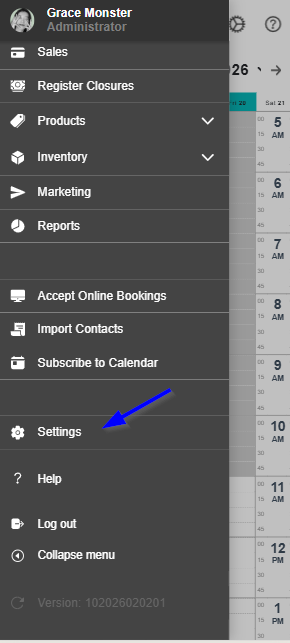
Select Settings.
-
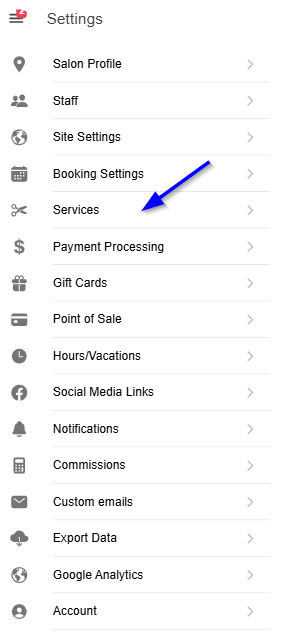
Select Services.
- Select the service you want to edit.
- Find the staff card for that service. (Each staff has their own price and duration)
-
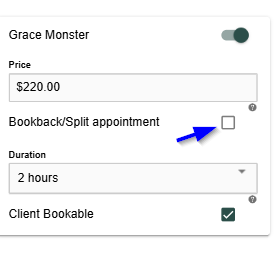
Check the Book Back Split Appointment checkbox.
-
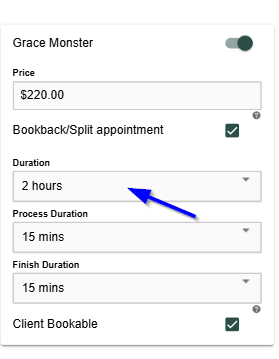
Add the time for Duration. (The hands-on time at the start of the service)
-
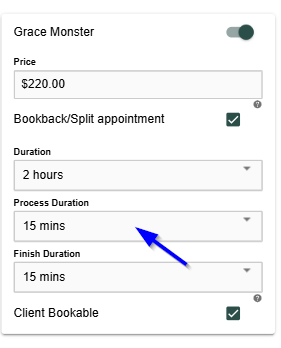
Add the time for Process Duration. (The processing time in the middle of the service when you can serve another client.)
-
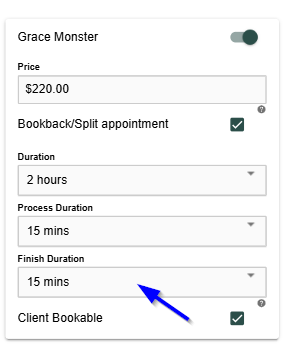
Add the time for Finish Duration. (The hands-on time at the end of the service, eg. rinsing the colour)
-
Select Save.
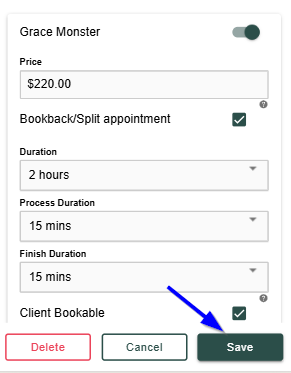
Now when you book this service it will have a processing time in the middle during which you can serve another client.
Why process time is helpful
- Your client stays booked for the full visit.
- The wait time is shown to them as part of the appointment.
- You can book another client during the process time.
- This helps you make better use of your day.
Change processing time for one appointment only
You can also add processing time for a single appointment.
- Open the appointment on the calendar.
- Select "Edit service"
- Toggle on the Bookback/split appointment option
- Change the Duration, Process Duration, or Finish Duration.
- Select Save.
This lets you change the timing for one visit without changing your default service setup.