Refunding a sale
If you need to refund a completed sale in salonMonster, you can open the receipt, choose the items to refund, and then record how the refund was given. If the original payment was processed through salonMonster Payments, it is important to choose the correct refund method so the money is actually returned to the client’s card.
To refund a sale in salonMonster:
-
Open the sale by doing one of the following:
- Go to Sales in the main menu, then find and open the sale.
-
Open the related booking, then select View Receipt.
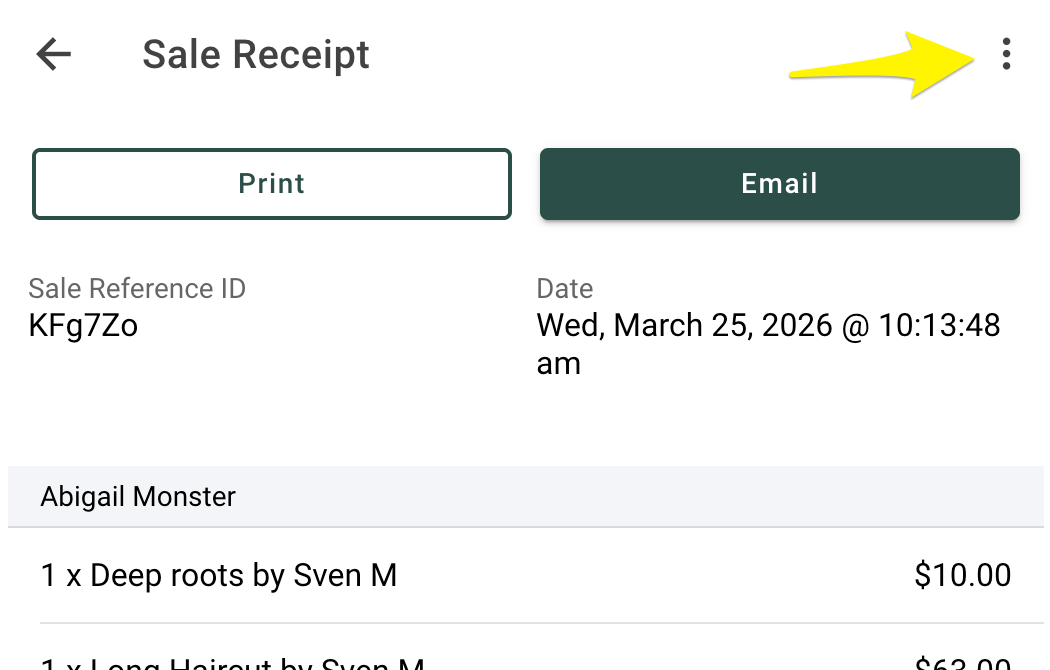
- Once you are viewing the sale receipt, select the 3 dots in the top right corner.
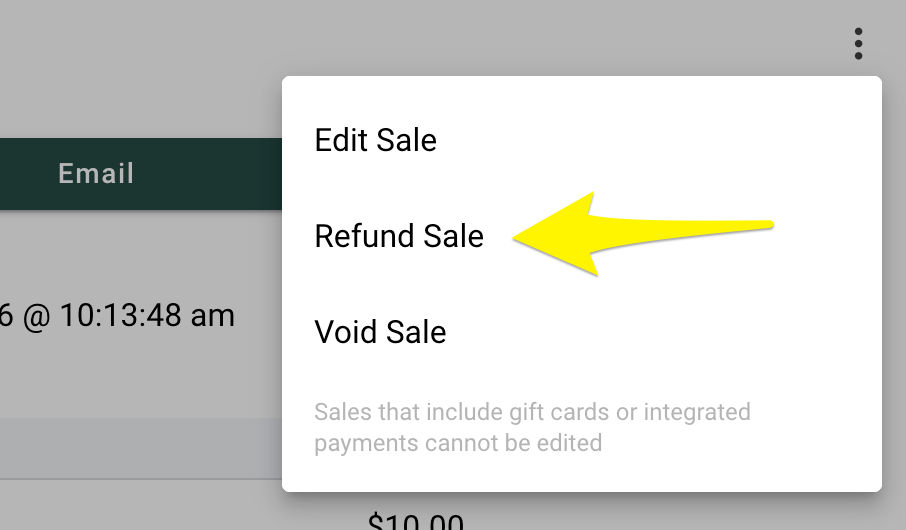
- Select Refund Sale.
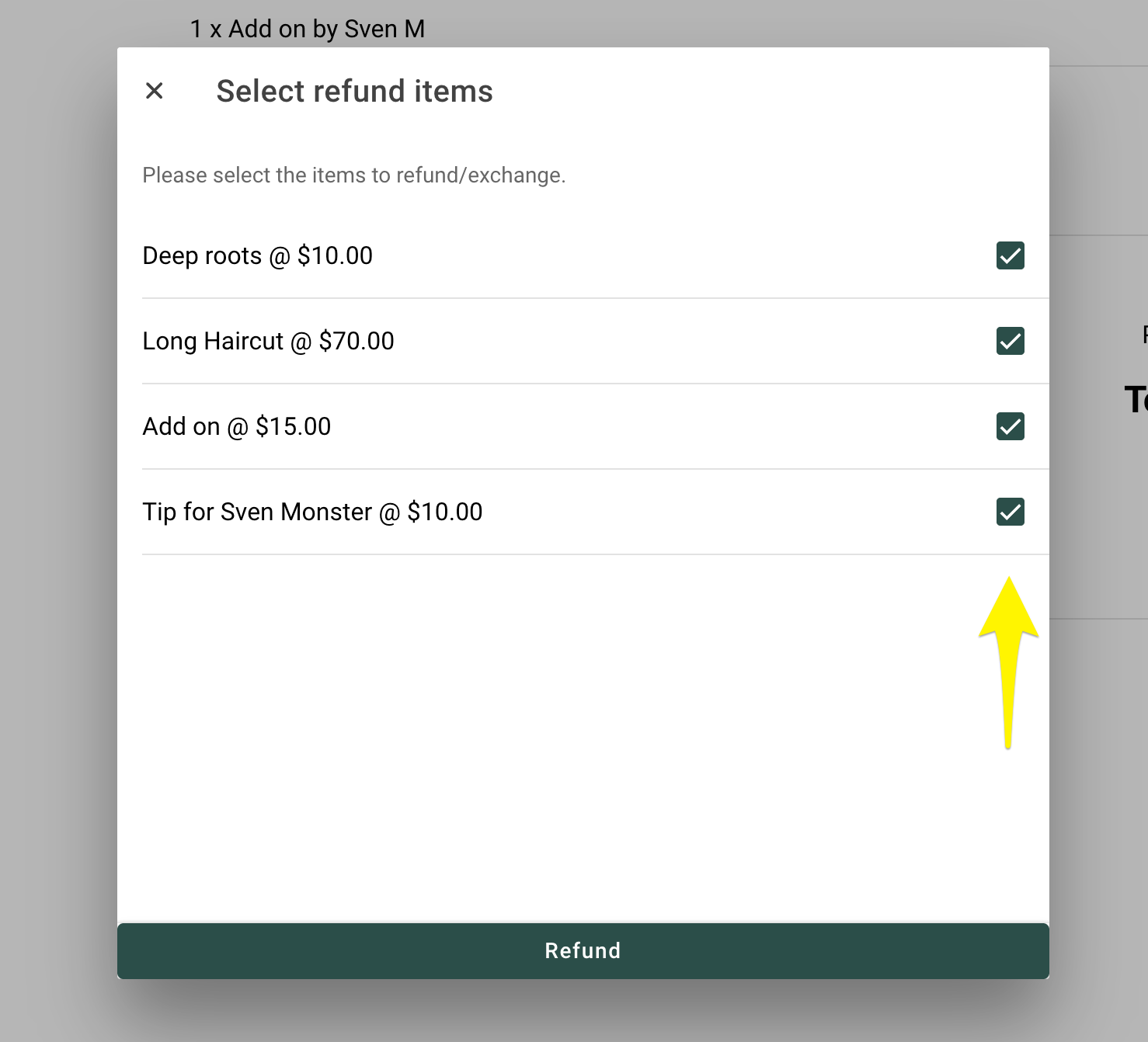
- Check the box beside each item you want to refund.
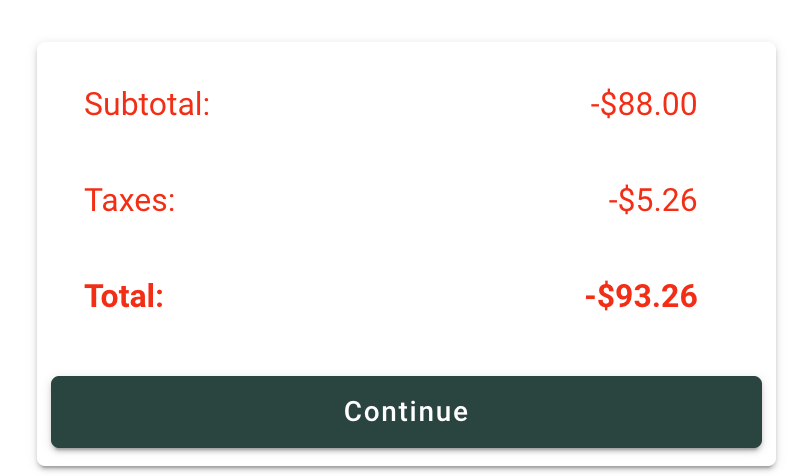
This will now show you the refund sale details.
Press Continue:
Choose the refund method carefully
If you are refunding a payment that was originally made through salonMonster Payments (Stripe), make sure you select the original card payment method.
If you do not choose the original card payment method, the refund will only be recorded in salonMonster. It will not actually send the money back to the client’s card.
If you are not refunding back to the original card, choose the payment method that matches how you are giving the refund, such as Cash.
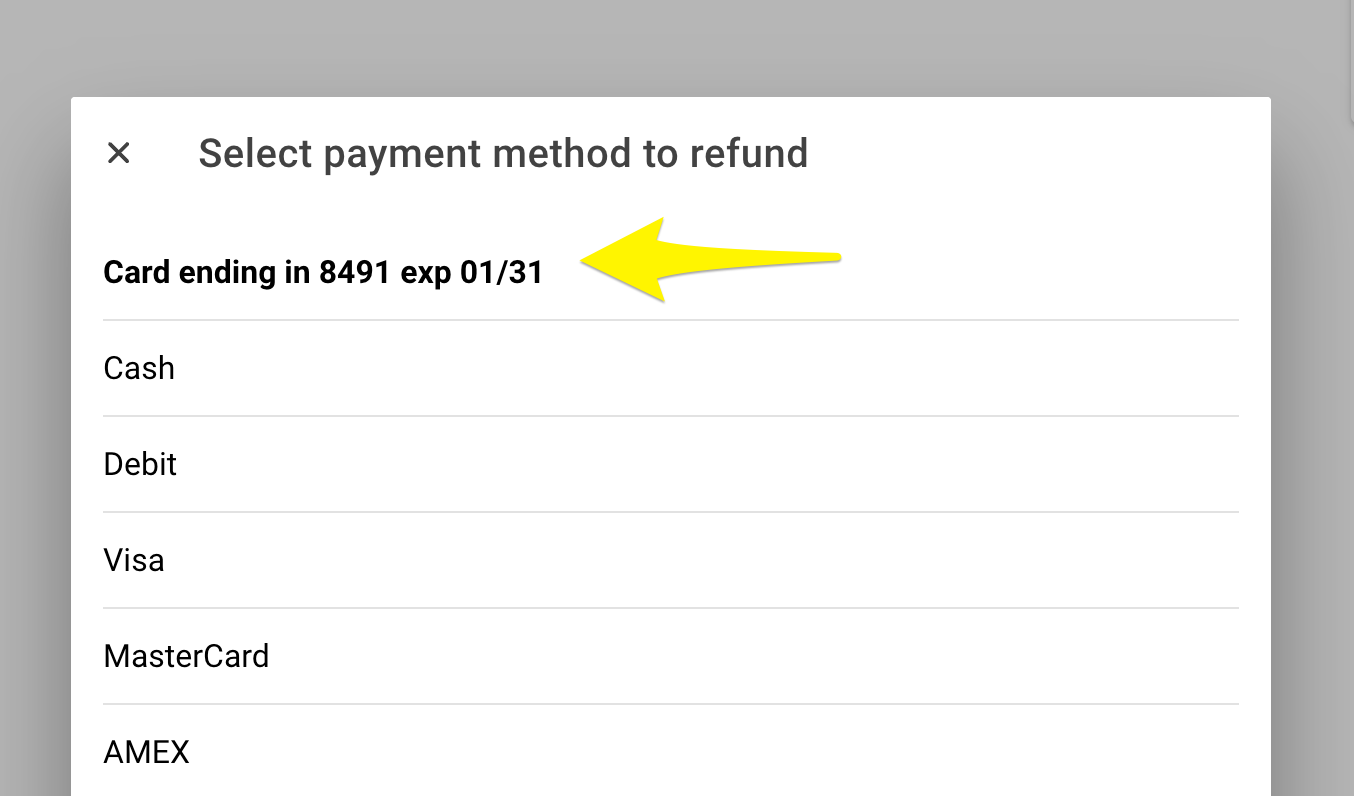
If you are refunding to a card, select Refund to card. If you are refunding to a credit card you do not need to have the original card present. If you are refunding to an interac card, the card must be present for the refund. If you don't have access to the debit card we recommend sending the client an e-transfer instead.
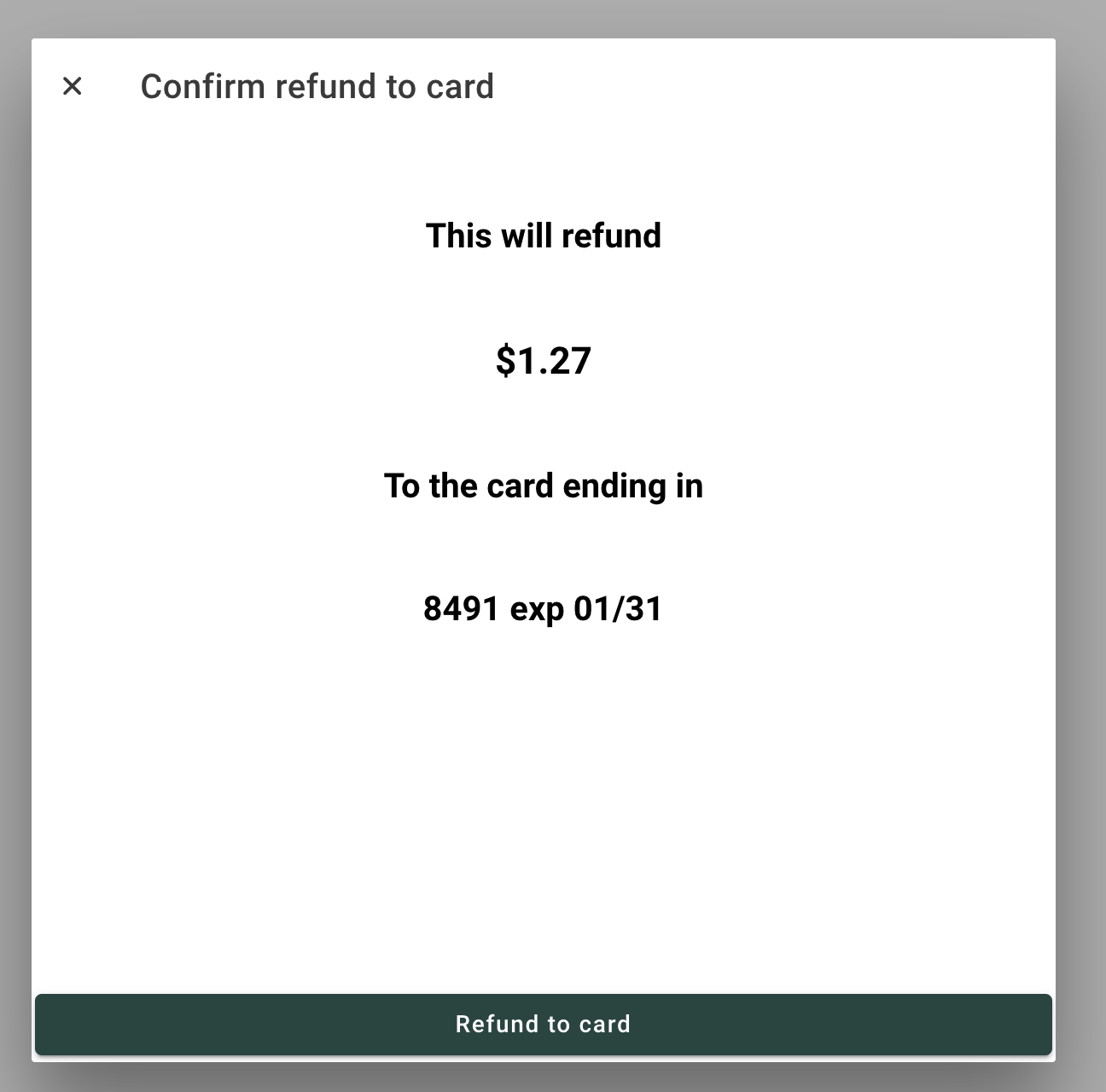
After the refund
Once the refund is completed, salonMonster will record the refund on the sale. Be sure to double-check that you selected the correct refund method, especially for card payments, so your records match how the refund was actually given to the client.